
Accumulated Minutes
Billing Accumulated Minutes
The Missouri Medicaid Program follows a billing rule that pays for visits that equal 15 minutes of time. However, capturing clocking times that fall exactly to this 15 minute rule are nearly impossible. Ankota has designed an Accumulated Minutes feature to bill worked minutes that fall outside of the 15 minute guideline in order to capture nearly all worked minutes during the monthly authorization. This feature allows your organization the opportunity to reduce the amount of dollars you miss billing due to realistic attendant clocking times.
To enable Accumulated Minutes in your organization, follow these steps:
Step 1
The first step is to make sure your billing business rule is set so that you can bill for accumulated minutes.
To confirm that this is set up correctly, you need to go to your Organization Detail screen. You can reach this screen by going to the top of the Main menu and clicking your Organization Code (Usually a 2-4 character code).
Note: If your organization settings are not available here, go to Settings and Organization Detail
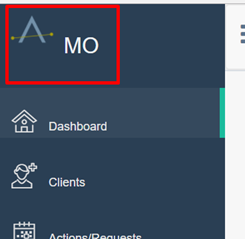
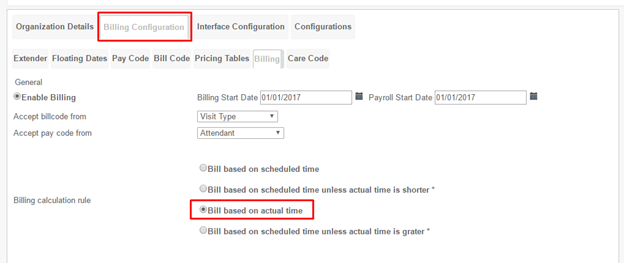
Once you are on the screen, click the “Billing Configuration” tab, go to the sub-tab “Billing”, and then select the “Bill based on actual time” from the options:
 It’s also very important for you to scroll down in this section and select “Round by 15 minutes” for Round By and Round Type. Also, you’ll need to set Payroll Round by” to “No Rounding”.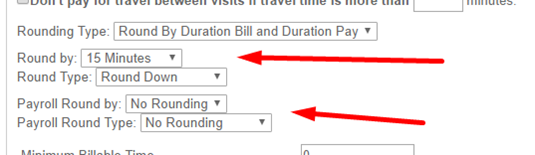
Step 2
After confirming the billing configuration setting, go to the Main Menu (the blue bar on the left), click on “Caregivers”, and create a Caregiver named “Accumulated Minutes.”
Note: No demographic information is needed other than the “Required” fields for this Caregiver.
Step 3
The next step is to set the Accumulate Minutes worker as the default worker for visit types that will be approved for the accumulated minutes function.
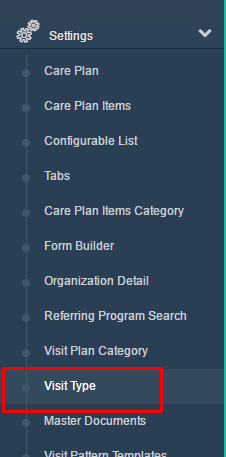 The Visit Type screen will likely already have a list of Visit Types and Visit Type ID’s listed. If you want to add a new Visit Type, you can always click the blue “Add New” button to create a new Visit Type.
 Click on the Visit Type ID that you’d like to bill for.
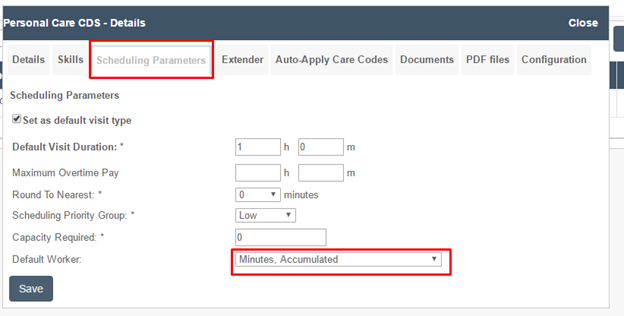
 Go to the “Scheduling Parameters” tab, and select the Caregiver you just created, “Accumulated Minutes” as your Default Worker.
Click Save.
IMPORTANT: Set all Visit Types you wish to bill for to the Accumulated Minutes” Caregiver as the default worker.
Step 4
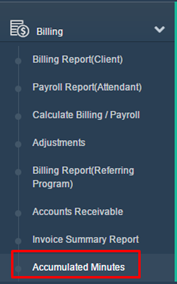
The next step is to go to the Main menu, click on “Billing,” then click on “Accumulated Minutes.”
On the Accumulated Minutes screen, search for the month you’re billing for, select “all clients”, and for clients with more than “0” remaining minutes, then click “Search”. (See screenshot below).
Step 5

After the search results appear, click on the field “Create Visit with Remaining Time” for each Visit you are seeking to bill accumulated minutes for.
This will create visits to accommodate the 15 minute rule. Any remaining time (anything less than 15 minutes) will stay in the column named “Remaining”.
Applied minutes will total in the column “Applied” after clicking “Create Visits With Remaining Time”.

After creating new visits through “Create Visit with Remaining Time”, the generated visits will automatically be closed and you may run “Calculate Billing” as usual.
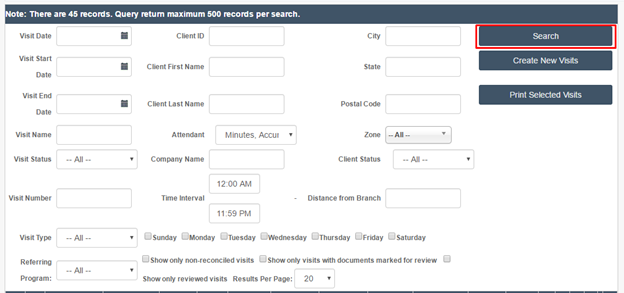
NOTE: You can find those new Visits by going to the Visits screen, searching for the Caregiver named “Accumulated Minutes” for the month.
NOTE: Ankota is able to make this process automated as well. Please reach out to Ankota Support to have this set up for you.